The Office
The Office is the first page the owner sees. It shows the whole team of agents at a glance: who is working, who is asleep, who is stuck, and who is waiting on the owner.
Where you see it
For now, the Office opens only for the owner of the reference install. A client box's owner sees the Working for you panel instead.
Open the app and you land here. From top to bottom there are four parts.
- The update strip. Up to three short lines. "Since you were here" says what changed. "Needs your decision" gives a count and who is asking. "At risk" names trouble, like a failed send, a late step, or a spending cap. A line with nothing to say is hidden. If all three are empty, the whole strip goes away.
- The room. A pixel-art office. Each agent is a small character who walks, sits, and works at a desk. A dot over each head shows its state: grey is asleep, orange needs you, green is working. The room is hidden on phones, because the list below says the same thing in less space.
- The list. One row per agent. Each row has the agent's name, its goal in one line, and bars for its key results (for example "Came to the workshop, 9 of 15"). It also shows the step it is on now and what kind of work that is, such as "Searching the web". A note icon means it needs you.
- The Working for you panel. Four tabs below the list. See The Working for you panel.
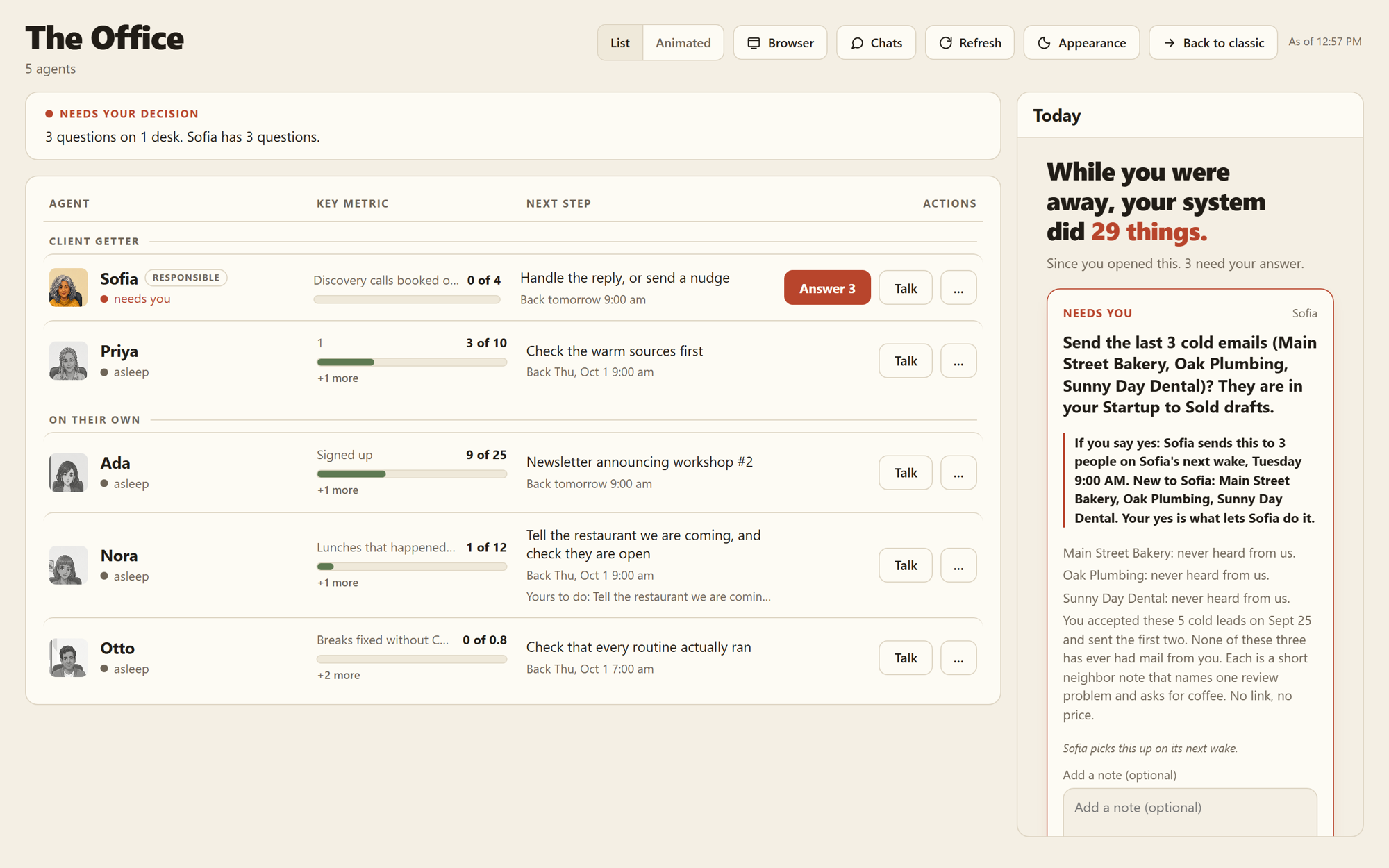 The list view. It is always there, on a computer or a phone.
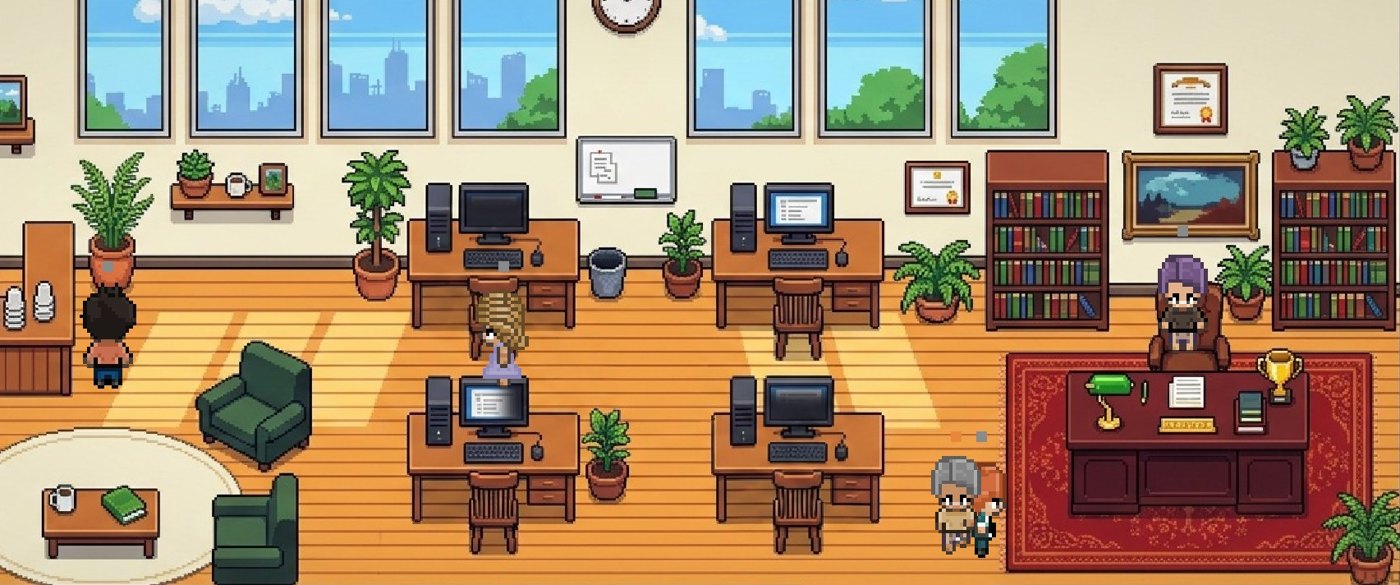 The room. A picture of the same facts, for a wider screen.
Each row has three buttons:
- Talk opens the agent's desk. See Desks and chats.
- Manager opens the manager's room. It stays hidden until a manager agent exists.
- ... holds the rest: leave a note for its next wake, What it did (the last seven days), and See its record (the logbook page, filtered to that agent).
Some plan steps are the owner's to do, not the agent's. The row then says "Yours to do" with the step. Tap it, tap Mark done, write a few words on how you know it is done, and tap Save. The agent reads those words on its next wake.
What happens, step by step
- The owner taps the home-screen icon. The box sends the browser straight to the Office.
- The page asks the box for one bundle of data, from
/api/office(the Office data feed). - The box builds that bundle from facts it already has: rows in the logbook, and the files in each agent's folder.
- The page draws the strip, the room, and the list. It works nothing out on its own.
- The owner sees an orange dot on Nora's row. The owner taps it and lands at her desk to answer her question.
- If an agent needs the owner's hands inside a website, its row shows Open the browser. See Watch the browser.
What powers it
| Part | What it does |
|---|---|
office_page.html | The page itself. |
sdk_server.py | The box's web server. It sends the front door to the Office and serves every screen. |
/api/office | The one data feed the page reads. Agent rows, states, key results, notes. |
office_picture.js | Draws the pixel-art room. It only paints what the data says. |
logbook.db | The logbook (a SQLite database, one file of tables). Holds what every agent did. |
sdk-page.service | The systemd job (the server's job scheduler) that keeps the web server running. |
Why it works this way
The page never asks an agent "what are you doing?" A guard already watches every tool call an agent makes and writes one line for each. The Office reads the newest line and turns it into plain words. It cannot be wrong about which tool ran, and it costs nothing extra.
Every sentence on the page is either a fill-in-the-blank template or a fact the box observed. A model writes only two things here: the agent's own replies when you talk to it, and one line per day marked "In its words" on the What it did sheet.
What it did shows only things that changed the world outside the agent: a step finished, a message sent, money spent. An earlier version listed 86 lines of "Running a command" and "Reading memory.md". The owner asked, "why would anybody need to know this?" So it changed.
Connected to
- Desks and chats: where Talk takes you.
- How an agent asks the owner: where the note icons come from.
- The trust ramp: what an agent may do alone.
- The logbook: the record the whole page is built from.
- Sign-in and the phone app: how the owner gets in.